
How to use this CS2 crosshair generator
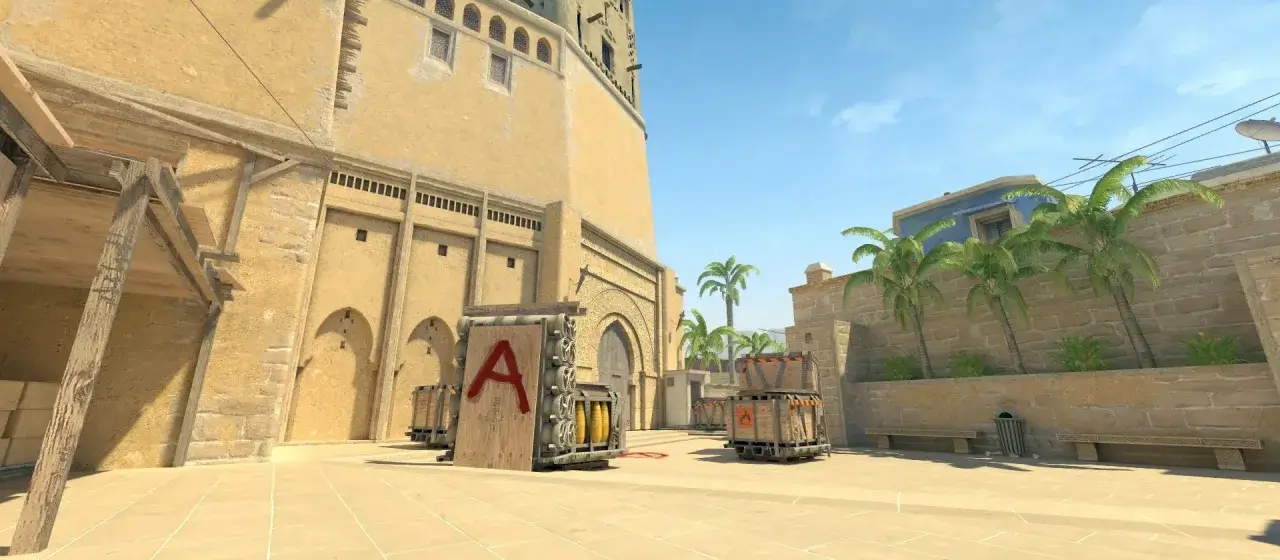
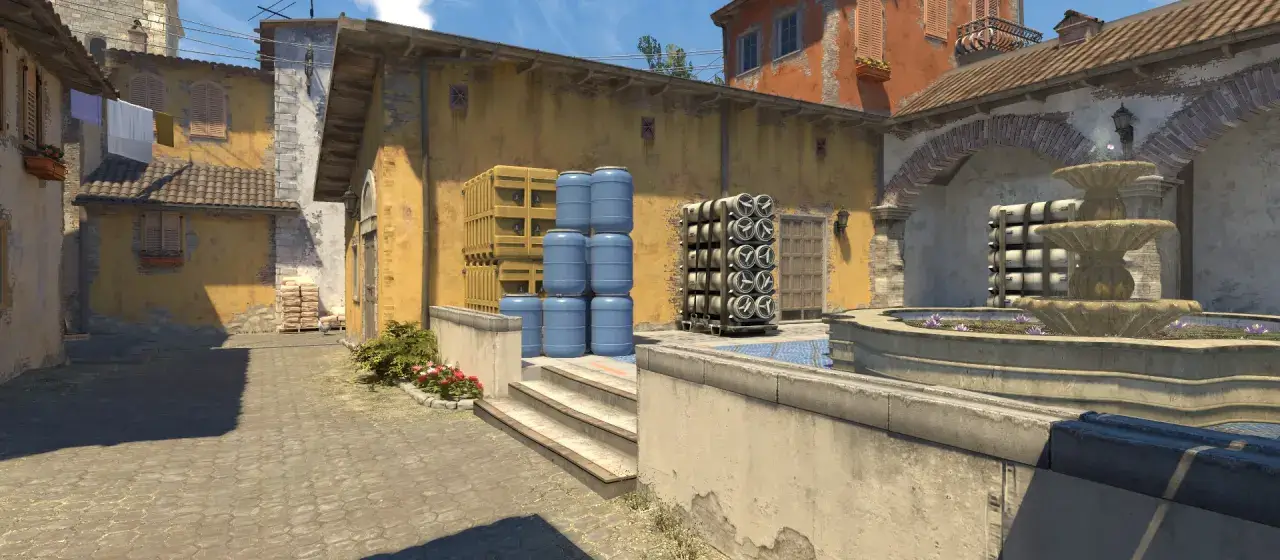
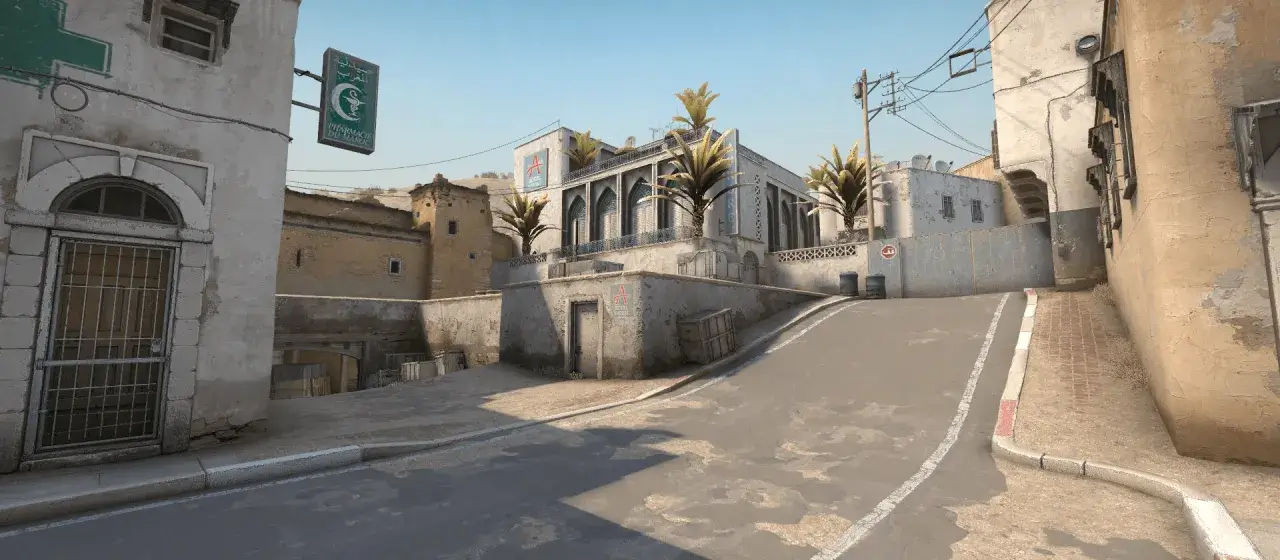
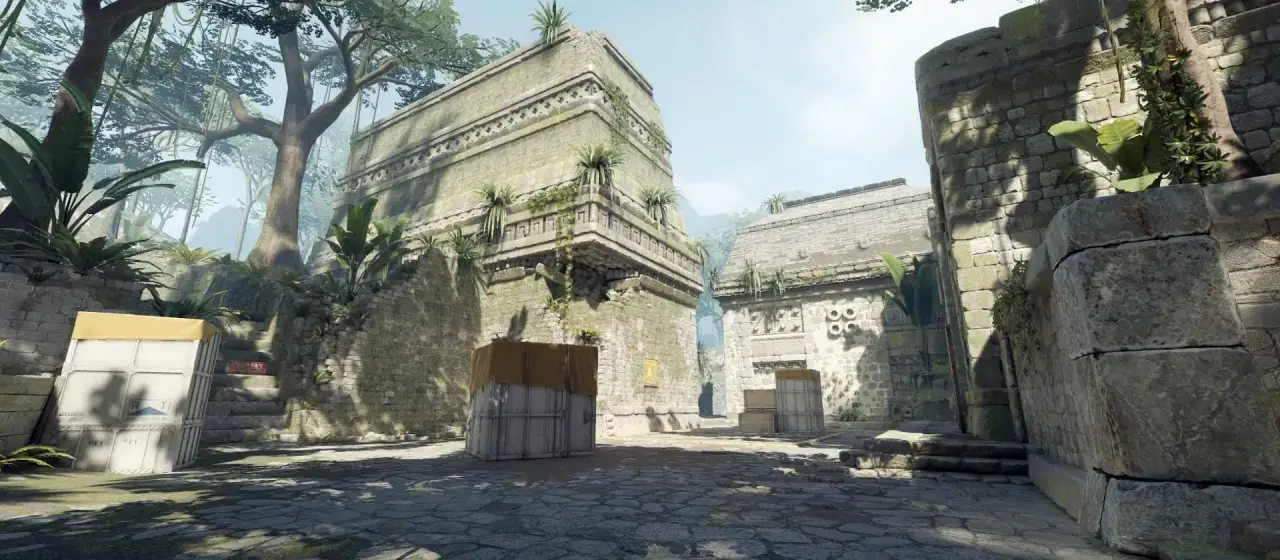
The preview at the top shows your crosshair on a real CS2 map background — use the arrows or dots to switch between Mirage, Inferno, Dust 2, and Ancient. Every change in the control panel updates the preview instantly, so you can dial in exactly what feels right.
When you're happy with the result:
- Click Copy to grab the console commands
- Launch CS2 and open the console (default key:
~) - Paste — your crosshair changes immediately
- Want to share it? Click Share to copy a link that opens the generator with this exact setup pre-loaded
Understanding the settings
Style
Controls whether the crosshair is static (always the same shape) or dynamic (opens up while moving/firing). Most pros use a static style — cl_crosshairstyle 4 or 5 — for a predictable picture under all conditions.
Length / Thickness / Gap
Length is how long each arm of the crosshair extends. Thickness is how chunky those arms are. Gap is the space between the center and where the arms start — negative gaps overlap toward center for a tighter look. Most pros run length 1-2, thickness 0.5-1, gap -3 to 3.
Outline
Adds a black border around the crosshair so it stays visible against bright textures (Mirage sand, Inferno wood). Enable it with thickness around 0.5–1.0 — too thick and the outline becomes the visual instead of the crosshair.
Color (RGB) + Alpha
The R/G/B sliders set the color. The most popular pro colors are cyan (0,255,255), green (0,255,0), and magenta (255,0,255) — all chosen because they contrast against CS2 map palettes (browns, tans, greens). Alpha controls transparency; lower = more see-through, useful with thick crosshairs.
Center dot
Adds a single pixel-or-larger dot at the center. Useful for one-tap weapons (AWP, Deagle, Scout) where the precise center matters more than the arms.
T style
Removes the top arm so the crosshair looks like a T, not a +. Some pros use this to avoid the top arm obscuring distant targets at long sight-lines.
Frequently asked questions
Where do I paste the console commands?
Open CS2, hit ~ (the tilde key, usually below Esc) to open the console. If the console doesn't open, go to Settings → Game → Enable Developer Console and rebind it if needed. Then paste the commands and press Enter. Your crosshair updates immediately.
Will these settings persist after I restart CS2?
Yes. Crosshair commands written via console are saved to your game settings automatically. You don't need to add them to an autoexec or rerun them.
Can I import a pro's crosshair?
Yes — every player page on our CS2 settings hub shows the player's full crosshair commands. Click Copy on their config block, paste into the CS2 console, done. To then tweak from there, paste their commands into this generator using the Paste button.
What's the difference between Style 4 and Style 5?
Both are static (don't expand when shooting). Style 4 is the modern static classic. Style 5 mimics the 1.6-era crosshair behavior more closely. Visually they're near-identical for most setups — try both and pick what feels right.
Why does my preview look slightly different in-game?
Pixel-perfect 1:1 rendering between a browser SVG and Source 2's renderer is impossible — sub-pixel rounding and screen-space scaling differ. The preview is accurate within a pixel or two of what you'll see in CS2 at 1080p; if you play at a higher resolution your in-game crosshair will look slightly sharper than the preview.
Does the Share link work?
Yes — Share copies a URL with all your current settings encoded in the address. Anyone who opens that link sees the generator pre-loaded with your exact crosshair. Useful for sharing in Discord or with a coach.